AI video editor · Coming soon
Edit video by telling the AI what to change.
The podswitch AI video editor is a multi-track timeline in your browser with an assistant beside it. Type “cut the first 5 seconds” or “add a title at the start” and the change happens on the timeline. One undo reverses it. Make reaction videos where the AI places your reactions, captions that follow every cut, and short clips in vertical, square or landscape. Your video stays on your computer.
The AI video editor is coming soon to podswitch. Everything described here is built and being tested before it is switched on for everyone.

An animation of Edit with AI, drawn after the real editor, with our own podcast footage.
What is an AI video editor?
An AI video editor lets you describe a change in words and makes it for you, instead of you doing every cut, title and caption by hand. The useful ones still give you a proper timeline, so you can check what the AI did and change anything yourself.
That is how the podswitch editor works. The assistant edits the same timeline you do, using the same tools: cutting, trimming, moving, text, captions, speed, pauses, sound levels, the frame shape and the layout of two pictures at once. It reads an overview of your timeline and the transcript, not your video.
How do you edit video with AI in podswitch?
- 01
Open your video in the editor
Start a reaction video, or open a podcast, video-call or solo recording you edited with podswitch. The timeline is built from your files, which are read from your computer. Short clips open in the same editor.
- 02
Say what to change
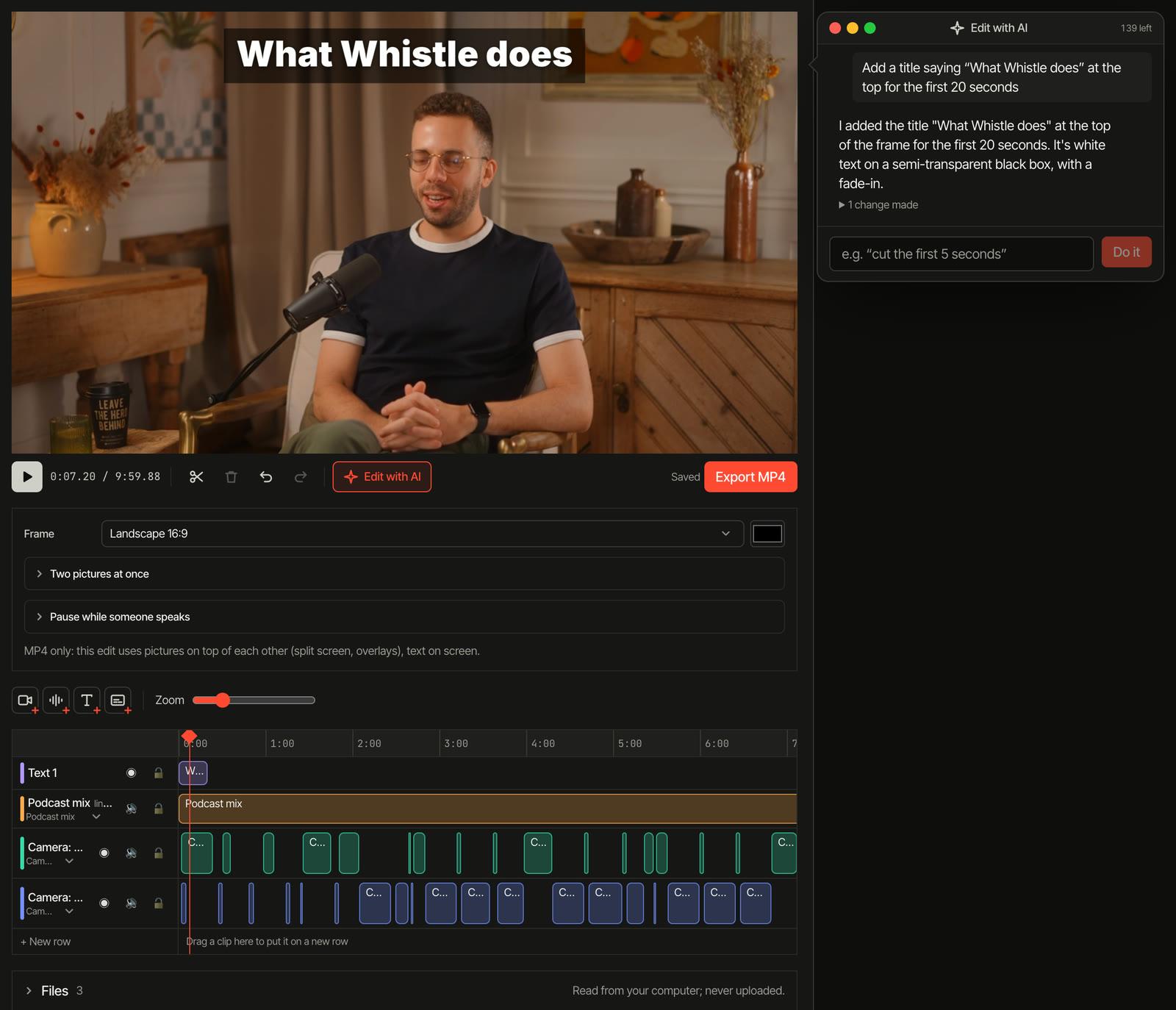
Click Edit with AI and type an instruction in plain English, such as “cut the first 5 seconds” or “make the captions yellow and bigger”. The AI reads an overview of your timeline and the transcript, then makes the change.
- 03
Check it, keep it or undo it
The panel shows each step as it works and the changed parts light up on the timeline. Everything it did in one instruction is a single undo step, so one undo puts it back. You can keep editing by hand at any point.
- 04
Export
Export an MP4 made in your browser from your own files. For podcast edits that only use what Final Cut Pro, Premiere Pro and DaVinci Resolve can receive, you can still download the editor files.
What can you ask it to do?
Anything the timeline can do. A few instructions to start with; you can write your own in your own words.
- “Cut the first 5 seconds”
- Removes a stretch of time and closes the gap.
- “Add a title “Wait for it” for the first 3 seconds”
- Adds text on screen with its own start and length.
- “Make captions from what is said”
- Makes a caption row from the recording’s transcript.
- “Make the captions yellow and bigger”
- Changes the caption style.
- “Make it vertical”
- Changes the frame to 9:16 (or square, or landscape).
- “Play this part at 1.5 times the speed”
- Changes the speed of a clip; voices keep their pitch.
- “Freeze the original while I talk”
- Pauses one picture while someone speaks on the other.
- “Turn the music down”
- Changes the level of a sound row.
What is in the editor?
- Edit with AI
- Type what you want changed, such as “cut the first 5 seconds” or “add a title at the start”. The AI makes the change on the timeline, shows its progress step by step and highlights what it changed. One undo reverses the whole edit.
- A timeline in your browser
- Rows for video, sound, text and captions. Cut, trim, split and move clips, with snapping, and lock, hide or mute a row. Change the speed of a clip, add text on screen, and add your own footage, images and music.
- Your video stays on your computer
- The editor plays and exports from the files on your computer and the MP4 is made in your browser. Only the edit itself is saved. To make captions, only the sound is sent to be transcribed.
- Reaction videos
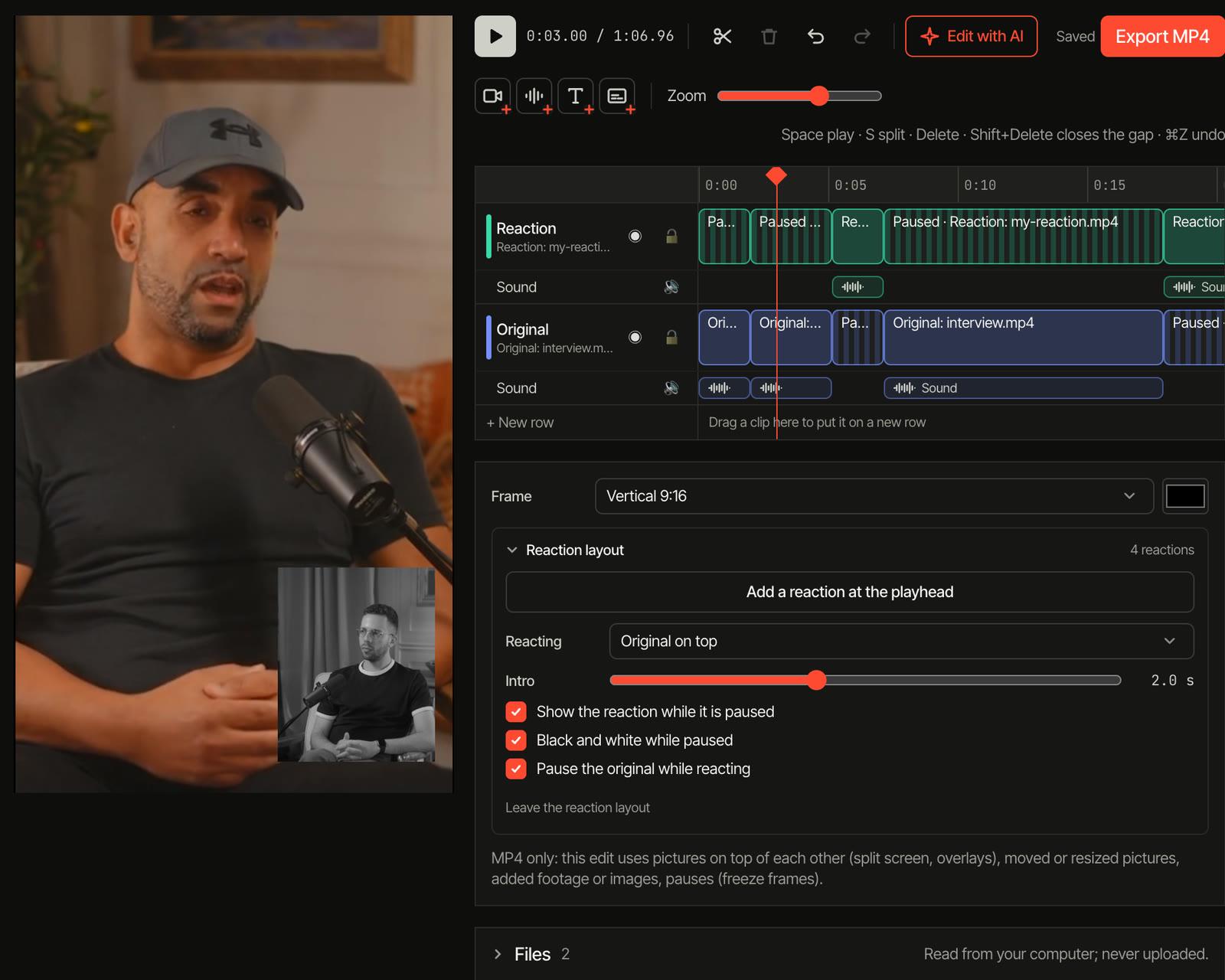
- Add the video you are reacting to and your reaction. The AI places each reaction after the moment it responds to; the original pauses while you talk, and your face waits in a small box until the next reaction.
- Captions that follow the recording
- Make captions from what is said. Cut, move or trim the recording and the captions move with it, keeping any words you corrected. Drag text and captions to where you want them on the video.
- Vertical, square or landscape
- Set the frame to 9:16, 1:1 or 16:9. Short clips open in the same editor, so you can finish a clip the same way as the full video.
Reaction videos, placed by the AI.
- Add the video you are reacting to and your reaction: one recording, or several pieces in order. Choose vertical, one above the other, or landscape, side by side.
- Once both are transcribed, the AI places each part of your reaction after the moment it responds to, spread across the original.
- The original pauses while you talk, or keeps playing more quietly. Between reactions your face waits in a small box, in black and white if you like.
- Drag, trim or delete any reaction, or ask the AI to change it.
Which shapes?
Change the frame at any time. Text and captions can be dragged to where they read best.
| Shape | Ratio | Frame size | Typical use |
|---|---|---|---|
| Vertical | 9:16 | 1080 × 1920 | Reels, TikTok and YouTube Shorts |
| Square | 1:1 | 1080 × 1080 | Feeds |
| Landscape | 16:9 | 1920 × 1080 | YouTube, LinkedIn and websites |
What leaves your computer?
- Your video does not. The editor plays from your files and the MP4 is made in your browser.
- The edit itself is saved, so you can come back to it: the timeline, not the footage.
- For Edit with AI, a text overview of the timeline and the transcript is sent to the AI model with your instruction.
- For captions and reactions, only the sound is sent to be transcribed, and it is deleted once the words are stored.
What does it cost?
Every plan includes AI edits, the free plan too. One AI edit is one instruction that worked; editing by hand does not use any. Prices are in pounds sterling and include VAT.
- Free trial (no account)5 AI edits£0
- Free10 AI edits a month£0
- Premium30 AI edits a month£7.99 a month or £79.99 a year
- Single project60 AI edits for the project£29.99 once
- MAX150 AI edits a month£49.99 a month or £499.99 a year
Need more? Add-on packs are a one-off payment: 40 AI edits for £6.99 or 100 AI edits for £14.99. Pack edits are used after your plan’s allowance and do not expire.
Guides
- How to edit video with AIWriting instructions that work, checking the result and when to edit by hand.
- How to make a reaction videoRecording, layout, pausing the original, captions and the rules on using other people’s videos.
- Podcast clip makerShort clips picked from your episode, which you can finish in the same editor.
AI video editor questions
What is an AI video editor?
A video editor where you can describe a change in words and the software makes it for you, instead of doing every cut, title and caption by hand. In podswitch you type an instruction such as “cut the first 5 seconds” into Edit with AI, and the change happens on a normal timeline that you can keep editing yourself.
How do I edit a video with AI in podswitch?
Open the video in the podswitch editor, click Edit with AI, type what you want changed and press Do it. The AI makes the change on the timeline and tells you what it did. One undo reverses the whole instruction.
Is the podswitch AI video editor free?
The free plan includes 10 AI edits a month. Paid plans include more, and you can buy add-on packs of extra AI edits that do not expire. Editing by hand on the timeline does not use AI edits. Prices are in pounds sterling and include VAT.
What counts as one AI edit?
One instruction that worked, however many changes it made. An instruction that fails does not count. Allowances reset at the start of each UK calendar month; a single-project purchase has its AI edits for that project instead. Add-on pack edits are used once your plan’s allowance has run out, and they do not expire.
Do I have to upload my video?
No. The editor plays and exports from the files on your computer, and the MP4 is made in your browser. When you use Edit with AI, a text overview of the timeline (its rows, clips, times, labels and transcript text) is sent to the AI model, not the video. To make captions or place reactions, only the sound is sent to be transcribed, and it is deleted afterwards.
Can it make reaction videos?
Yes. Add the video you are reacting to and your reaction. Once both are transcribed, the AI places your reactions after the moments they respond to. The original pauses while you talk, or keeps playing more quietly if you prefer, and your reaction waits in a small box between reactions. You can move, trim or remove any reaction by hand.
Do captions stay in sync when I cut the video?
Yes. Captions made from a transcript stay attached to the recording, so when you cut, trim or move it they move with it, and words you corrected are kept. If you want to time a caption line by hand, unlink the captions first.
Which shapes can I export?
Vertical 9:16, square 1:1 and landscape 16:9. You can change the frame at any time, by hand or by asking the AI.
Does it replace Final Cut Pro, Premiere Pro or DaVinci Resolve?
No. podswitch still sends multicam podcast edits to those editors. The AI video editor is for finishing a video in your browser: reaction videos, titles, captions, short clips and quick changes, exported as an MP4. Edits that only use what those editors can receive can still be downloaded for them.