Skip to content

New · Social clips

One episode. Clips for the week.

podswitch reads the conversation, suggests the moments most likely to work as short clips, and builds each one: pauses cut, camera following the speaker, captions in your style, in vertical, square or landscape. Open them in Final Cut Pro, Premiere Pro or DaVinci Resolve, or render an MP4 in your browser without uploading your video. On MAX, each clip also gets music, thumbnails and a post for every platform.

How does it work?

  1. 01

    podswitch transcribes the episode

    As soon as an edit is ready, the dialogue mix is transcribed, with every word matched to the person speaking it.

  2. 02

    Claude picks the moments

    Tell it how many clips you want, how long, and optionally what to look for. Share them between the speakers on one slider, or pick one of the episode’s themes and get clips about it. It looks for a strong opening line, one clear idea and a payoff that makes sense without the rest of the episode.

  3. 03

    podswitch builds each clip

    Pauses and dead air are cut out. The camera follows whoever is talking, with short shots of the other person when they react or reply. Captions are timed to the words and laid out for the shape.

  4. 04

    You check it, then export it your way

    Preview each clip with your own files, change any camera, cut or caption, then download it for Final Cut Pro, Premiere Pro or DaVinci Resolve, or render an MP4 in your browser (beta).

What’s new

Clips, your way

Caption styles you control, MP4s rendered in your browser without uploading your video, transcripts in every format, and timing you can set to the millisecond.

Captions, transcripts and the finishing touches

The same real podswitch clip in six caption styles: bold outline, word highlight, clean, boxed, impact and cinema.

Captions

Captions in your style

Start from one of six styles, then change anything: font, size, weight, colours, outline, shadow, a box behind the text, the spoken word highlighted, how many words show at once and where they sit. The preview and the rendered video use the same renderer, so they match exactly.

  • Bold outline
  • Word highlight
  • Clean
  • Boxed
  • Impact
  • Cinema
A caption’s start and end times with up and down steppers, showing 0:01.087 to 0:02.040, above a timeline zoomed in to single frames.

Caption editing

Fix any word, to the millisecond

Correct a caption’s wording, set when each line starts and ends with millisecond precision (the arrow keys move it 1 ms at a time, or a frame with Shift) or remove a line. Zoom the clip’s timeline down to single frames to place cuts exactly.

  • Millisecond timing
  • Frame-by-frame zoom
  • Remove a line
  • SRT keeps the milliseconds
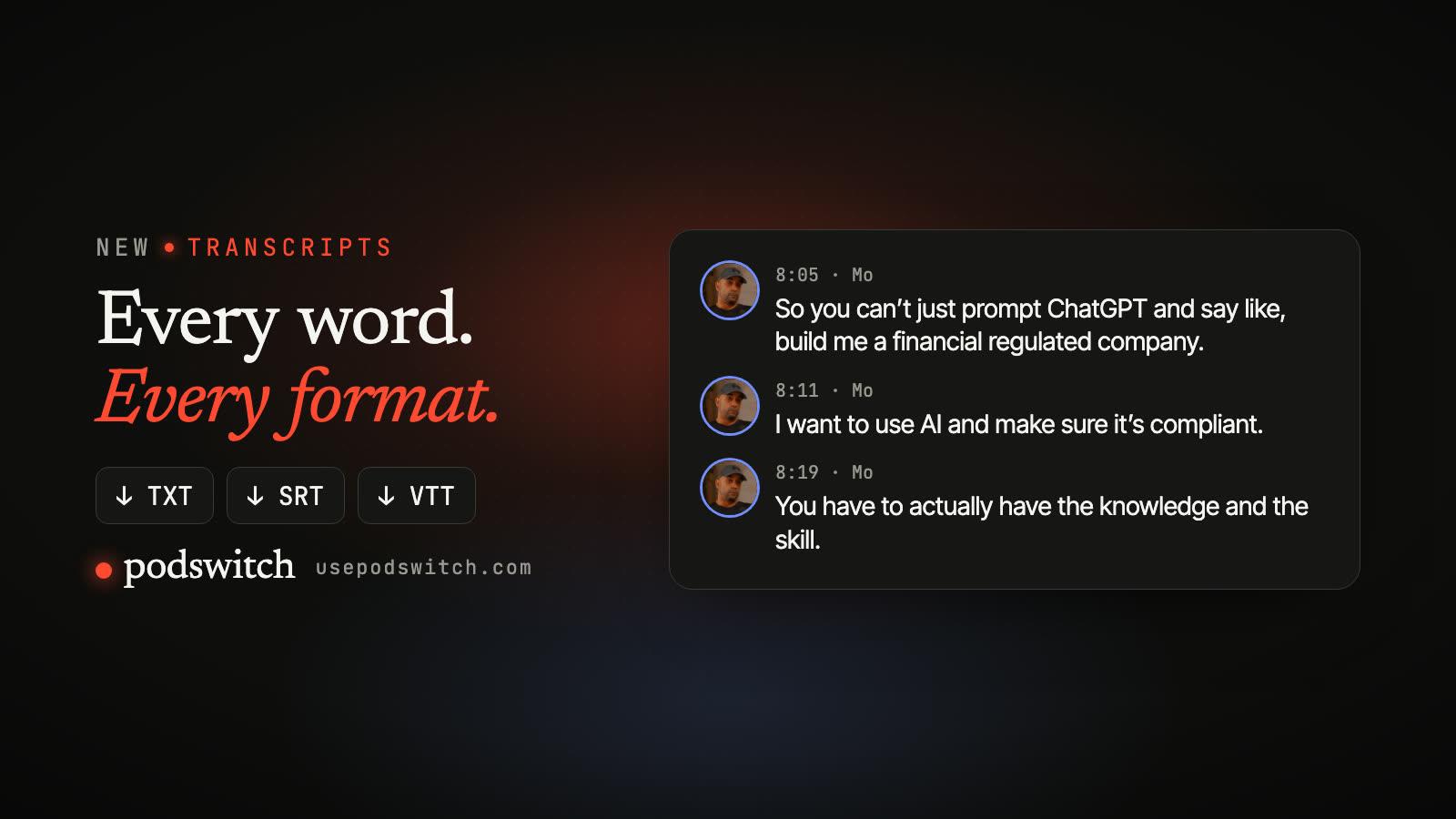
A podswitch transcript with speaker photos and times, and download buttons for TXT, SRT and VTT.

Transcripts

The whole episode, word for word

Every word matched to the person who said it, with each speaker’s photo taken from their own camera. Download it as plain text, SRT or WebVTT, correct it in the browser or replace it with your own captions file, and jump to each of the episode’s themes.

  • TXT
  • SRT
  • WebVTT
  • Edit in the browser
  • Themes
Make longer: an instruction reading “Include the question that leads into it, and end on the pricing point”, and a 30 second clip growing into a 60 second version around the original moment.

Make longer

Love a clip? Make a longer one

Pick a length up to three minutes and, if you like, say what you want in plain English. podswitch keeps the moment and its hook, adds what comes before and after it, and builds the new version as a clip set of its own.

  • Up to 3 minutes
  • Plain-English instructions
  • Same hook
  • Counts as one clip
A real podswitch clip with word-highlight captions, and a panel showing the MP4 rendered in the browser: 1080 by 1920, captions burned in, made from your files without uploading the video.

Beta

Render the MP4 in your browser

Make a finished video of any clip right in the page: cropped for its shape and captioned in your style, from the camera files on your computer. Your video is not uploaded. Works in browsers that support WebCodecs.

  • MP4
  • Captions burned in
  • No video upload
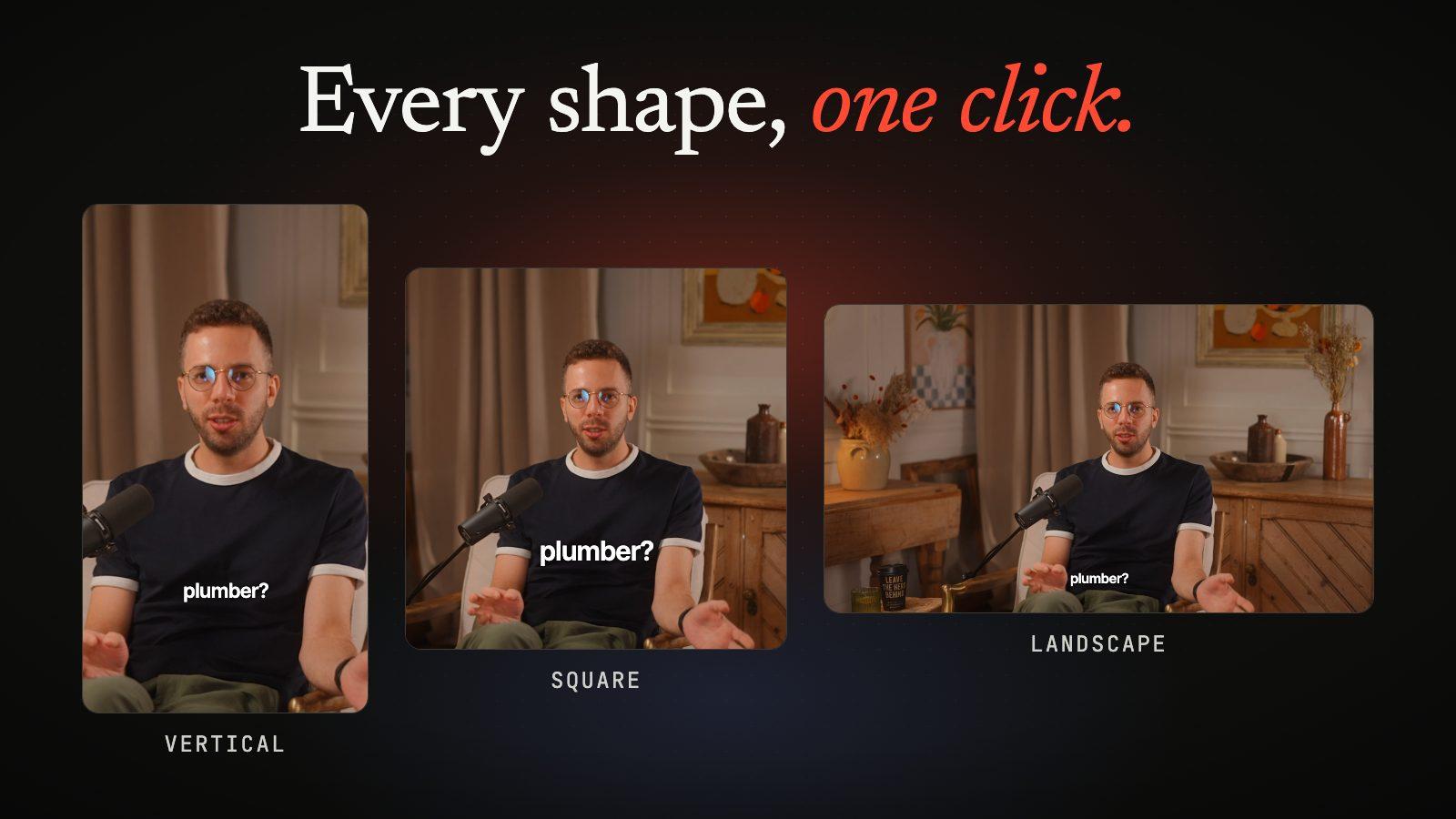
The same podswitch clip in vertical, square and landscape.

Shapes

See every shape before you ask

The shape buttons show your own footage cropped for vertical, square and landscape, fading between both cameras, so you know how it will look before any clip is made. Set each camera’s framing once and every clip uses it.

  • 9:16
  • 1:1
  • 16:9
  • Framing per camera

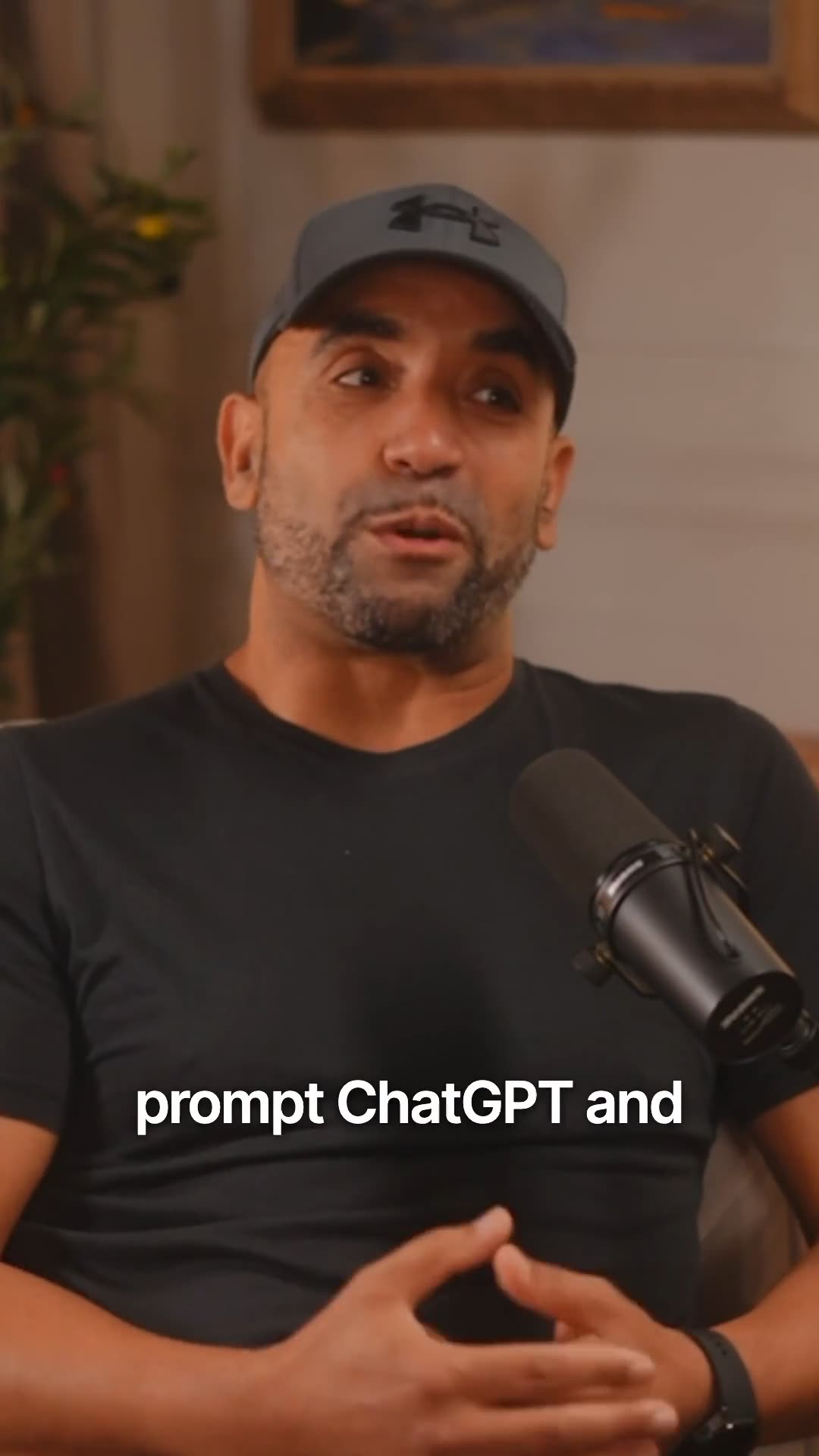
A real clip, as podswitch built it

These are the suggestions Claude made for one of our own recordings, with the score it gave each. The clip alongside is the top-scored one, built by podswitch from the two camera files. For this page the captions are burned in; in your editor they stay editable.

  1. You can’t just prompt ChatGPT to build a regulated company30s88
  2. Are we all going to die because of AI?25s84
  3. Why most people in the UK can’t get financial advice29s82
  4. Why tech-only startups fail in fintech27s80
  5. Can regulated financial advice run on LLMs?31s78
  6. AI is good at some things, not others33s78

The score is the model’s judgement of how well a moment stands on its own as a short clip. It does not predict views: what you post, and when, is up to you.

What is in each clip?

Hook and reason
Every suggestion shows the opening line, why it was picked and a score, so you can decide quickly which to post.
Pauses removed
Silences between and within sentences are cut, so the clip moves at the pace people scroll at.
Camera that follows
The person speaking is on screen. The listener appears for reactions and replies, a few times a minute, so it still feels like a conversation.
Three shapes
Vertical 9:16 for Reels, TikTok and Shorts, square 1:1 for feeds, and landscape 16:9. Before you ask for clips, see each shape with frames from your own cameras, and set the framing for each camera once.
Styled captions
Six starting styles (bold outline, word highlight, clean, boxed, impact and cinema) and every detail adjustable: font, size, colours, outline, shadow, a box behind the text, the spoken word highlighted, words on screen and position. The preview and the rendered video show exactly what you set. Editors support styled titles differently, so plain editable captions and SRT files are always there too.
Captions you can correct
Fix any word, set when each line starts and ends to the millisecond (the arrow keys move it 1 ms at a time) or remove a line. Final Cut Pro, Premiere Pro and DaVinci Resolve titles sit on whole frames; SRT files keep the milliseconds.
Your edits
Change who is the main focus, swap the camera on any shot, add or remove cuts, cut a part out of the clip, and rename it. Zoom the timeline down to single frames. Changes are saved and used in the download.
Longer versions
Turn a clip you like into a longer one, up to three minutes, keeping its moment and its hook, with instructions in plain English such as “start with the question”.
Render in your browser
Make an MP4 of any clip, cropped and captioned, right in the page from your own camera files. Your video is not uploaded. In beta, in browsers that support WebCodecs.
Transcript
Download the episode’s transcript as plain text, SRT or WebVTT, correct it in the browser or replace it with your own captions file, and jump to each of the episode’s themes in the preview.
Your logo
On paid plans, add your logo once and place it for each shape. It shows on every clip, in the preview, the MP4 and the editor files, and you can hide it on any clip.
Music (MAX)
Music made for the conversation plays quietly under the clip and dips when someone speaks. Move it, trim it or set its level on the clip’s own timeline, or switch it off for that clip.
Thumbnails (MAX)
A thumbnail for each clip in every social size, drawn from your own camera frames, or made by AI from a short description.
Post text (MAX)
A post for each clip, written separately for LinkedIn, X, Instagram, Facebook, TikTok and YouTube Shorts, with quotes checked word for word against the transcript.

MAX · Social Studio

Music, thumbnails and posts for every clip.

On MAX, everything you need to post a clip is in one place: music made for the conversation, a thumbnail in every size and the post for each platform, ready to download as one ZIP.

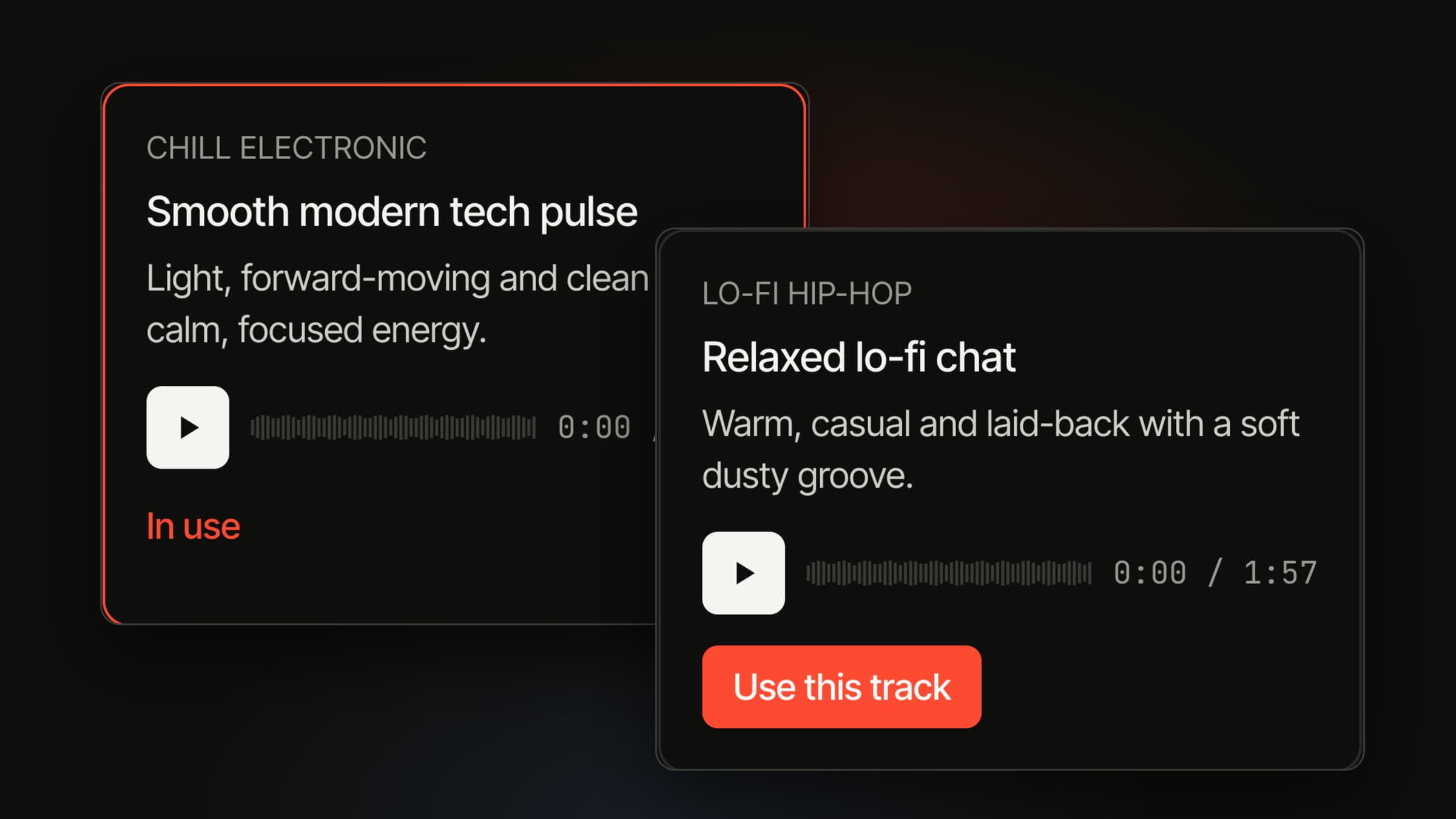
  • Two music ideas in podswitch for the sample episode: Smooth modern tech pulse, chill electronic, in use, and Relaxed lo-fi chat, lo-fi hip-hop, each with a player.

    Music made for the conversationMAX

    Three music ideas based on what is actually said, each with a 30-second sample. The track you pick plays quietly under the edit and every clip, dips when someone speaks, and can be moved, trimmed and levelled on the timeline.

    • 3 ideas
    • 30 s samples
    • Dips under speech
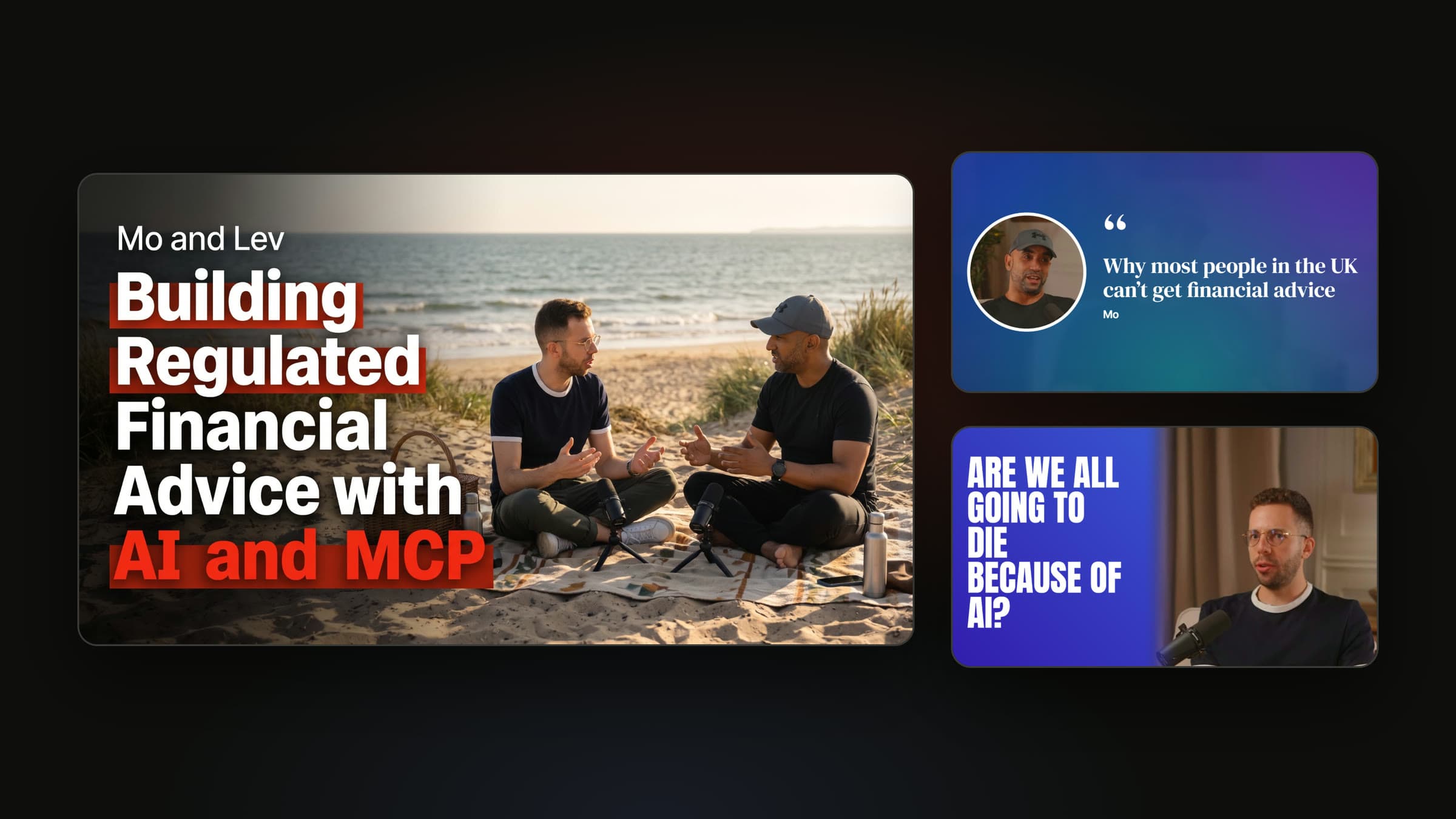
  • Three thumbnails made by podswitch: an AI thumbnail of Lev and Mo on a picnic blanket on a beach, a quote card of Mo and a stacked headline over a photo of Lev.

    Thumbnails, designed or made by AIMAX

    Pick the person and the moment, and your browser takes the frame from your camera files: 10 layouts, gradients, photo effects, 9 title fonts and your logo, in every social size. Or describe the design in your own words, and AI makes it from the frames you choose, keeping everyone recognisable.

    • 10 layouts
    • Every size
    • Your logo
    • AI thumbnails
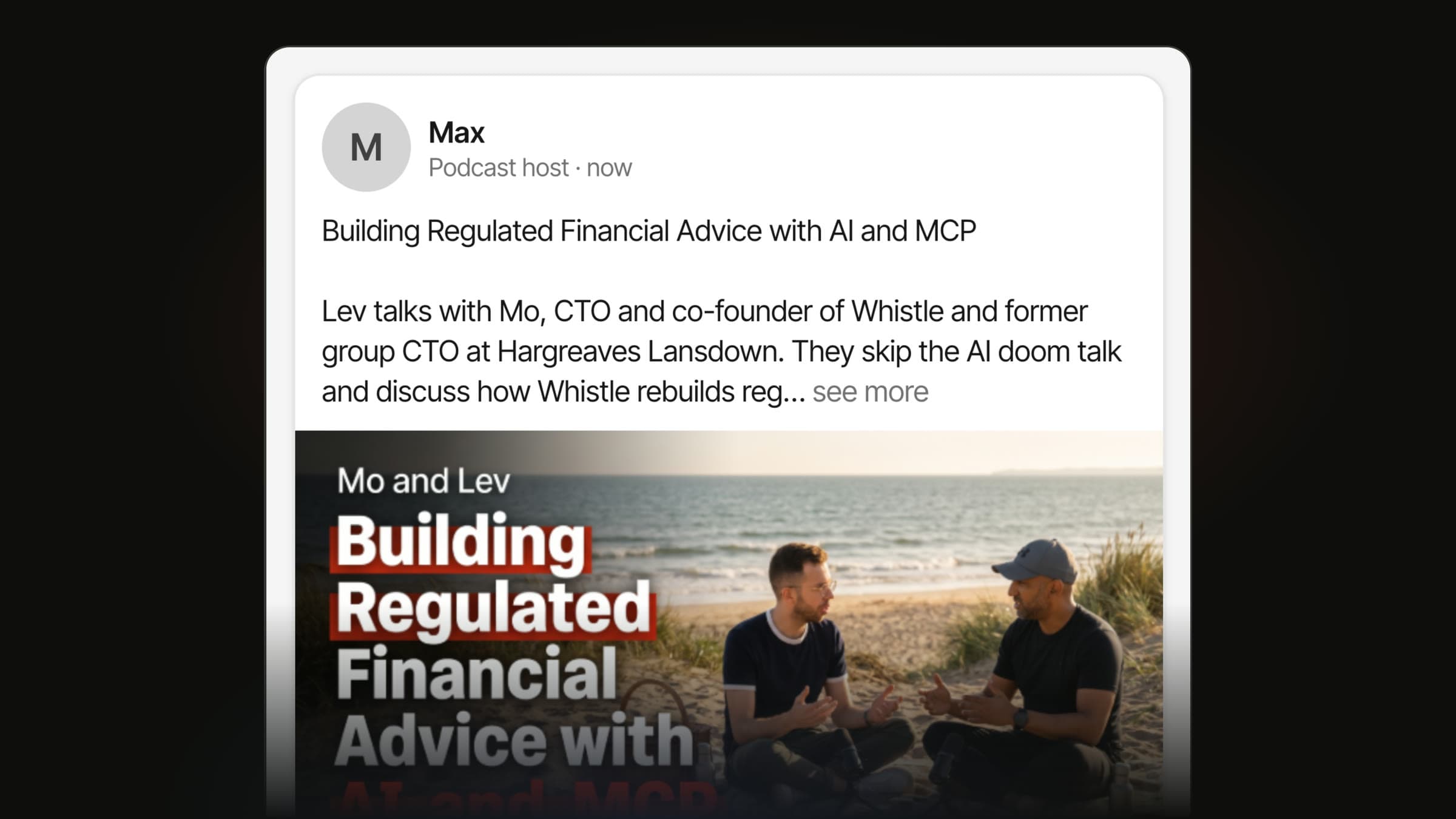
  • A LinkedIn post preview in podswitch: the post text about the episode above its thumbnail of Lev and Mo.

    A post for every platformMAX

    LinkedIn, X, Instagram, Facebook, TikTok and YouTube Shorts each get their own post, previewed in the feed with a character count, and quotes checked word for word against the transcript. Download every image and post in one ZIP.

    • 6 platforms
    • Feed previews
    • Quotes checked
    • One ZIP

Explore the Social Studio

Which plans include it?

Social clips come with paid plans. Each plan includes a number of clips per calendar month; a request that fails does not count.

  • Premium, monthly15 clips a month
  • Premium, annual30 clips a month
  • MAX, monthly60 clips a month
  • MAX, annual60 clips a month

See pricingHow podswitch makes the edit

Want the short version, with inputs, shapes and limits? The podcast clip maker in brief. Music, thumbnails and posts for every platform are in the Social Studio. More on the episode transcript and its formats.

Social clips questions

What are social clips?

Short clips cut from your episode for Reels, TikTok, YouTube Shorts and LinkedIn. podswitch transcribes the conversation, picks the moments most likely to land, cuts out the pauses, switches to whoever is talking, adds captions and frames each clip vertical, square or landscape. You get them as timelines for Final Cut Pro, Premiere Pro or DaVinci Resolve.

How does podswitch choose the moments?

An AI model (Anthropic’s Claude) reads the transcript and looks for a strong opening line, one clear idea and a payoff, in a moment that makes sense on its own. Each suggestion comes with its hook, the reason it was picked and a score. The score is the model’s judgement, not a promise of views: you choose what to post.

Are the clips rendered videos?

You choose. Like the full edit, clips open in your editor as timelines that use your own camera files, already cut and framed, with captions you can edit. Or render an MP4 of a clip in your browser (beta): it is made on your computer from your own files, cropped and captioned exactly as in the preview, and your video is not uploaded. In-browser rendering needs a browser that supports WebCodecs.

Can I change a clip before I export it?

Yes. Preview each clip with your own files in the browser, rename it, change who is on screen for any shot, add or remove cuts, set the framing for each camera, and make a different person the main focus. You can also ask for clips featuring a particular person.

Are captions included?

Yes, in a style you choose: six starting styles and every detail adjustable, from the font and colours to a highlight on the word being spoken. Rendered videos and the preview show the style exactly. Final Cut Pro can take the captions as styled titles or plain editable captions; Premiere Pro and DaVinci Resolve get styled text layers or a plain SRT file. Each editor supports styled text differently, so the SRT is always available. You can correct every caption, and its timing to the millisecond, before you download.

What happens to my audio for social clips?

The dialogue mix is transcribed by AssemblyAI in the EU, and the transcript, with the speaker names you entered, is sent to Claude to choose the clips. Neither may use it to train their models. Your video is never uploaded.

Can I download the transcript?

Yes, on plans with social clips. Download it as plain text with speaker names, or as SRT or WebVTT subtitles for the whole episode. You can correct it in the browser first, or replace it with your own SRT or VTT file. Corrections are used for themes and new clips.

What are episode notes?

On paid plans, podswitch writes title ideas, a description, YouTube chapters and show notes for the episode from its transcript.

Which plans include social clips?

Paid plans. Each plan has a number of clips per calendar month, shown on the pricing page. Clips made by a request count against it; a request that fails does not.