Guide
How to edit video with AI, and write instructions an AI video editor gets right
By Lev PerlmanUpdated 4 min read
To edit video with AI, open the video in an AI video editor, describe one change in plain words ("cut the first 5 seconds", "add a title for the first 3 seconds", "make it vertical"), check what it did on the timeline, and keep it or undo it. The skill is in the instructions: say what, where and how much, one change at a time, using words that are in the video or on the timeline. This guide covers what AI video editing can and cannot do, how to write instructions that work, and how to check the result.
What is AI video editing?
AI video editing covers two kinds of help:
- Automatic jobs. The software analyses the video and does a task by itself: cutting silences, making captions from speech, picking highlights for clips.
- Edits you describe. You say what you want in words and the software makes that change. This is what people usually mean by "edit video with AI".
The second kind is only useful if you can see what changed. Look for an editor that keeps a normal timeline, shows you what the AI did and lets you undo it in one step. Otherwise you are left re-watching the whole video to find out.
What can you ask an AI video editor to do?
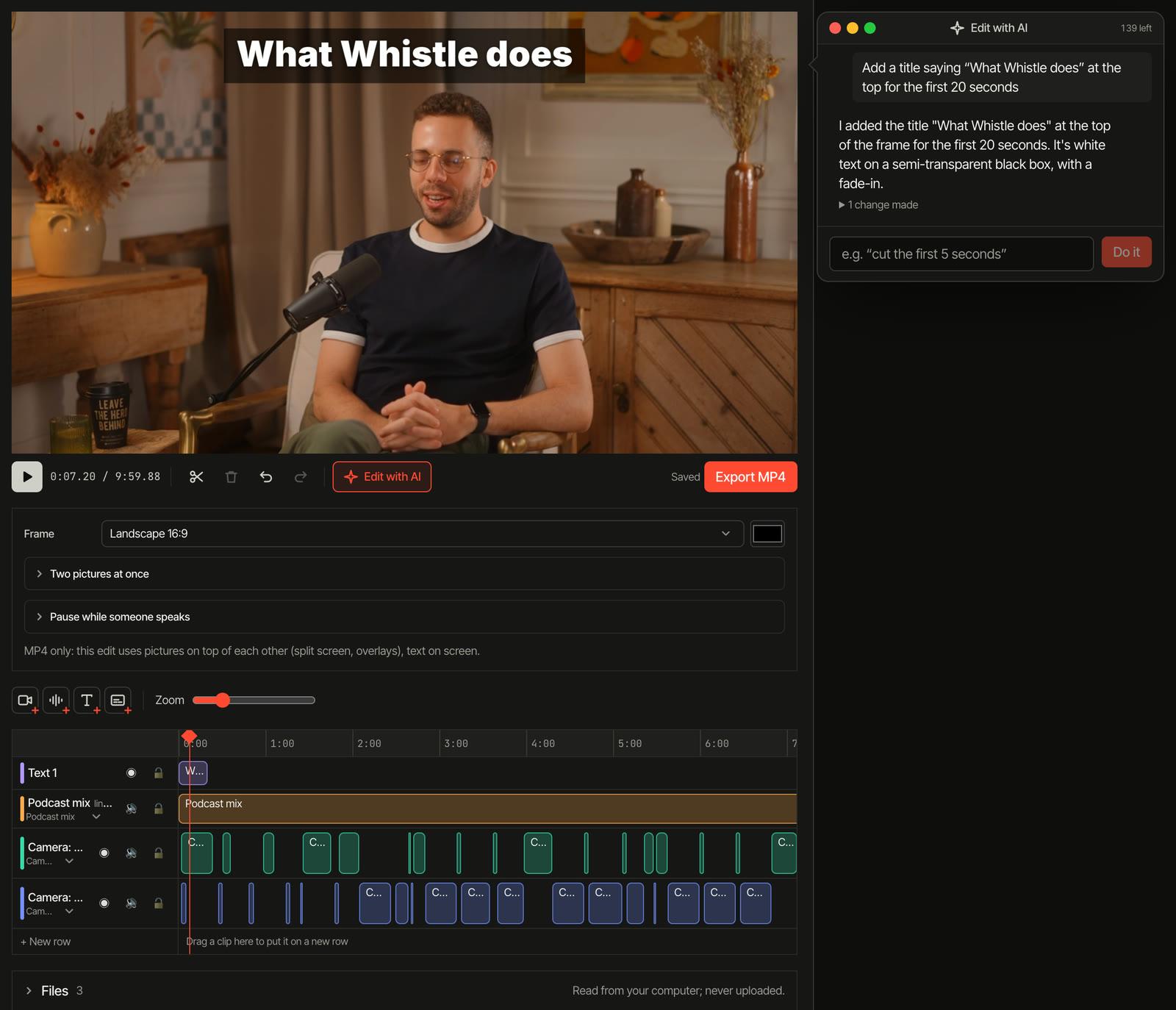
Most of what you would do by hand on a timeline. Examples that work in podswitch:
| You type | What happens |
|---|---|
| Cut the first 5 seconds | A stretch of time is removed and the gap closed |
| Add a title "Wait for it" for the first 3 seconds | Text on screen with its own start and length |
| Make captions from what is said | A caption row from the transcript |
| Make the captions yellow and bigger | The caption style changes |
| Make it vertical | The frame becomes 9:16 |
| Play this part at 1.5 times the speed | The clip speeds up; voices keep their pitch |
| Freeze the original while I talk | One picture pauses while someone speaks on the other |
| Turn the music down | A sound row gets quieter |
What it cannot do is invent footage you did not record. An AI editor rearranges, trims, labels and styles what you give it.
How to write instructions that work
- One change at a time. "Cut the first 5 seconds" works better than a paragraph of five changes. If one part goes wrong, you undo one thing.
- Say where. Use times ("from 0:42 to 0:50"), positions ("at the start", "at the playhead") or the words someone says ("where Mo starts talking about pricing"). Tools that read the transcript can find spoken words.
- Say how much. "A bit shorter" is a guess; "3 seconds shorter" is not.
- Use the names on screen. If a row is called "Reaction" or a clip is labelled "Intro", use those names.
- Say what it should look like when it matters: "white, bold, at the top", "yellow and bigger".
- Check before the next one. Read the reply, look at what lit up on the timeline, play the moment. Then move on.
How to check the AI's work
- Read the reply. In podswitch it says what it changed, and "1 change made" opens a list of each step.
- Look at the timeline. The parts it touched light up.
- Play the moment. Especially for cuts: listen for a clipped word.
- Undo if it is wrong. One undo reverses everything from that instruction. Then rephrase with more detail about where or how much.
When to edit by hand instead
AI is fastest for changes that are easy to describe and tedious to do: many cuts, caption styling, layouts, titles. Do it by hand when:
- you are judging timing by feel, such as the exact frame a cut lands on a laugh;
- it is quicker to drag than to describe, like nudging a title a little to the left;
- you have tried twice and the instruction still is not landing.
In podswitch the two mix freely: the AI edits the same timeline you do, so you can drag a clip, ask for the next change, then trim by hand.
Edit video with AI in podswitch
The podswitch AI video editor is a multi-track timeline in your browser with Edit with AI beside it.
- Type what to change; it happens on the timeline and one undo reverses it.
- Reaction videos: the AI places your reactions after the moments they respond to. See how to make a reaction video.
- Captions that follow the recording when you cut or move it, and text you can drag on the video.
- Short clips open in the same editor, in vertical, square or landscape.
- Your video stays on your computer. The MP4 is made in your browser. For AI edits, a text overview of the timeline and transcript is sent, not the video.
- AI edits on every plan, the free plan included, with add-on packs that do not expire. See the AI video editor page for the allowance on each plan.
Common questions
How do you edit a video with AI?
Open the video in an AI video editor, describe the change you want in plain words, such as "cut the first 5 seconds" or "add a title for the first 3 seconds", and let it make the change. Then check the result on the timeline, keep it or undo it, and carry on by hand or with the next instruction.
What is AI video editing?
Editing where software does some of the work from a description or by analysing the video, for example cutting pauses, making captions from speech, picking highlights or making a change you asked for in words. A good AI video editor still gives you a timeline, so you can see and change what it did.
What can an AI video editor do?
It depends on the tool. Common tasks are cutting stretches of time, adding titles and captions, changing the shape of the frame, changing speed and sound levels, and finding moments in a transcript. In podswitch the AI can do anything the timeline can, including placing reactions in a reaction video.
Is there a free AI video editor?
Several editors include some AI features for free. The podswitch free plan includes a number of AI edits each month, and editing by hand never uses them. See the pricing page for the current allowance on each plan.
Will the AI change things I did not ask for?
It should not, and you should be able to tell. In podswitch the parts it changed light up on the timeline, the reply says what it did, and one undo reverses the whole instruction.
Does AI video editing need my video uploaded?
Many online editors upload your whole video. The podswitch editor plays and exports from the files on your computer; for an AI edit it sends a text overview of your timeline and transcript, not the video.