Guide
How to make a reaction video, from recording to export
By Lev PerlmanUpdated 6 min read
To make a reaction video, record yourself watching the original with your own microphone and headphones, put the two videos together with both pictures on screen, pause the original (or lower its sound) while you talk, cut the stretches where nothing happens, add captions and export in the shape your platform wants. This guide covers each step, the layouts that work for vertical and landscape, and the copyright rules to think about before you post, with UK law and YouTube's policy linked at the end.
What makes a good reaction video?
A reaction video works when the reaction adds something the original does not have: an opinion, an explanation, a joke, expertise. YouTube draws the same line in its monetisation rules. It lists "reaction videos in which you comment on the original video" as allowed, and treats content that gets its views "from mostly non-verbal reactions" without voice commentary as reused content.1
In practice that means:
- Talk. Say what you think and why, at the moments that deserve it.
- Keep it moving. Cut the parts of the original nobody needs to see, and the parts of your recording where you are only watching.
- One voice at a time. Pause the original, or turn it down, while you speak.
- Make both faces readable on a phone. The layout matters more than the effects.
Step 1: record yourself watching
- Put a microphone close to you. A lapel or a desk microphone a hand's width from your mouth. Your voice is the part people came for.
- Wear headphones. If the original plays through speakers, your microphone records it too, and you end up with two copies of its sound slightly out of step.
- Frame yourself with room for the layout. In a vertical video your half of the screen is roughly square, so keep your head and shoulders in the middle with some space above.
- Record in one go, or in parts in order. Either works in podswitch. If you stop and start, record the parts in the order you watched.
- Say what you are watching out loud now and then. "This bit, at the start of the demo..." helps you, and any editing tool that reads a transcript, line your comments up later.
Step 2: choose the layout
Two layouts cover almost every reaction video:
| Shape | Layout | Where it is used |
|---|---|---|
| Vertical 9:16 | The original above, you below (or the other way round) | Reels, TikTok, YouTube Shorts |
| Landscape 16:9 | The original and you side by side | YouTube, websites |
Many reaction channels also show the original full screen while you are quiet, with your face in a small box, and switch to half and half when you speak. It keeps the original readable without losing you.
Step 3: pause the original while you talk
This is the step that turns a screen recording into a reaction video. Every time you speak, either:
- pause the original (a freeze frame) until you finish, then let it carry on; or
- keep it playing more quietly, if the moment you are reacting to is still unfolding.
Done by hand, this means splitting the original at every comment, adding a freeze and moving everything after it along. It is the slowest part of the edit, and the part an AI editor can do for you.
Step 4: cut, caption and export
- Cut the dead air. Long stretches of the original with no reaction can go, and so can the bits of your recording where you are only watching.
- Add an intro. A couple of seconds of both pictures at the start tells viewers what kind of video this is.
- Caption what you say. Captions make your reaction readable with the sound off, before anyone decides to turn it up. Our guide to captions for clips covers styles that read well on a phone.
- Credit the original in the video and in the description, with a link.
- Export in the shape you laid out: 1080 × 1920 for vertical, 1920 × 1080 for landscape. See social media video sizes for each platform.
How to make a reaction video with podswitch
The podswitch AI video editor has a reaction mode built for exactly this.
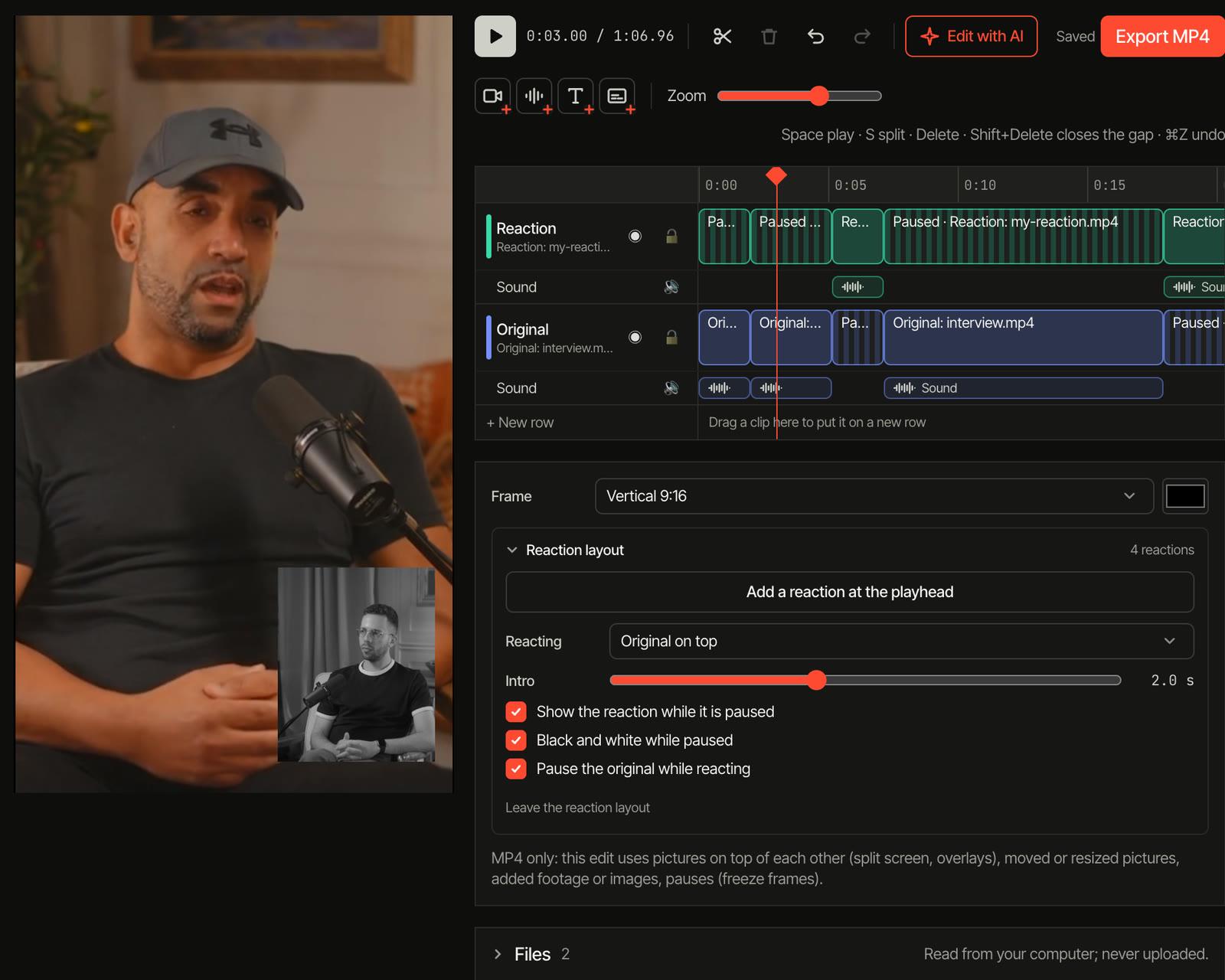
- Start a new reaction video. Choose the video you are reacting to and your reaction (one recording or the parts in order), pick vertical (one above the other) or landscape (side by side), and choose which goes on top. Your videos stay on your computer.
- Let the AI place your reactions. Once both recordings are transcribed (only their sound is sent for this, and it is deleted afterwards), the AI reads both transcripts and places each part of your reaction after the moment it responds to, spread across the original.
- Check the layout. The video opens with both pictures for the intro. Then the original plays full screen with your face in a small paused box, in black and white if you like, and each reaction plays half and half while the original pauses or keeps playing more quietly.
- Adjust by hand or by asking. Drag, trim or delete any reaction on the timeline. Or type an instruction such as "make the intro 3 seconds" or "hide my reaction while it is paused" into Edit with AI. One undo reverses whatever it did.
- Add captions and export. Make captions from what you say; they move with your reactions when you change them. Drag them to where they read best, then export an MP4 made in your browser.
Copyright: what to check before you post
A reaction video usually contains someone else's work, so copyright applies. This is general information, not legal advice.
- UK law has a fair dealing exception for criticism, review and quotation. It covers any type of copyright work and needs a sufficient acknowledgement of the original.2
- "Fair" is judged case by case. The UK Intellectual Property Office says there is no statutory definition, and lists factors courts look at, including whether your use affects the market for the original (for example, by replacing it) and whether the amount taken was reasonable and necessary.2
- Platform rules are separate from the law. YouTube's reused content policy is "not based on copyright, permission, or fair use", so a video can get no copyright claim and still be judged reused content.1
- Permission is the safe route. If you can, ask the creator. Some invite reactions and say so.
To keep a reaction on the right side of both, use only as much of the original as your commentary needs, talk over it rather than letting it play out, credit it clearly, and do not post a reaction that could stand in for watching the original.
Sources
-
YouTube Help, "YouTube channel monetization policies", section "Reused content". https://support.google.com/youtube/answer/1311392 ↩ ↩2
-
UK Intellectual Property Office, "Exceptions to copyright", GOV.UK, sections "Criticism, review and reporting current events" and "Fair dealing". https://www.gov.uk/guidance/exceptions-to-copyright ↩ ↩2
Common questions
How do you make a reaction video?
Record yourself while you watch the original, with your own microphone, then put the two videos together in an editor. Show both pictures at once (stacked for vertical, side by side for landscape), pause or lower the original while you talk, cut the parts where nothing happens, add captions and export. In podswitch the AI places your reactions after the moments they respond to, and you check and adjust them on the timeline.
What do I need to record a reaction video?
A camera or webcam pointed at you, a microphone close to you, and headphones so the original's sound does not get into your microphone. Record in one go or in parts, in the order you watched.
Should I pause the original while I react?
Usually yes. Viewers cannot follow two people talking at once, so most reaction videos pause the original, or play it more quietly, while the reactor speaks. podswitch can do either.
Is it legal to make a reaction video in the UK?
Using someone else's video can infringe their copyright. UK law allows fair dealing with a work for criticism, review or quotation, with a sufficient acknowledgement, but whether a use is fair is judged case by case, including whether it takes more than needed and whether it replaces the original. The safest route is permission from the owner. This guide is not legal advice.
Can you monetise reaction videos on YouTube?
YouTube's monetisation policies list reaction videos in which you comment on the original video as allowed for monetisation, and list content that gets views from mostly non-verbal reactions without added voice commentary as reused content that is not. Copyright claims are handled separately from that policy.
Should a reaction video be vertical or landscape?
Vertical (9:16) for Reels, TikTok and YouTube Shorts, with one picture above the other. Landscape (16:9) for YouTube, with the two side by side. podswitch makes either from the same project.